
Yes. The SDK renders with Jetpack Compose and Material 3, and needs minSdk 24.
In-app surveys for Android, native in Jetpack Compose
WhiskrKit is a Kotlin library that shows short surveys inside your Android app. The surveys are real Jetpack Compose UI, so they look like part of your app: your Material 3 colors and typography, dynamic color, dark mode and TalkBack included. You write the questions and decide who sees them in the dashboard, and change them without shipping an app update.
One composable, one survey
Add WhiskrKitSurvey(identifier = ...) to the screen where the survey belongs. That's the integration.
@Composable
fun HomeScreen() {
    WhiskrKitSurvey(identifier = "trip-planner-nps")
    TripList()
}
WhiskrKit checks the targeting rules you set in the dashboard, like "after 5 sessions" or "for 20% of users", and only presents the survey when the user qualifies. Sessions are counted per time the app comes to the foreground. Apart from initializing once and adding the host (see Installation), there's nothing else to wire up.
Five question types, and when to use each
The right question type depends on what you want to learn. A rough guide:
| Question type | Best for | Example |
|---|---|---|
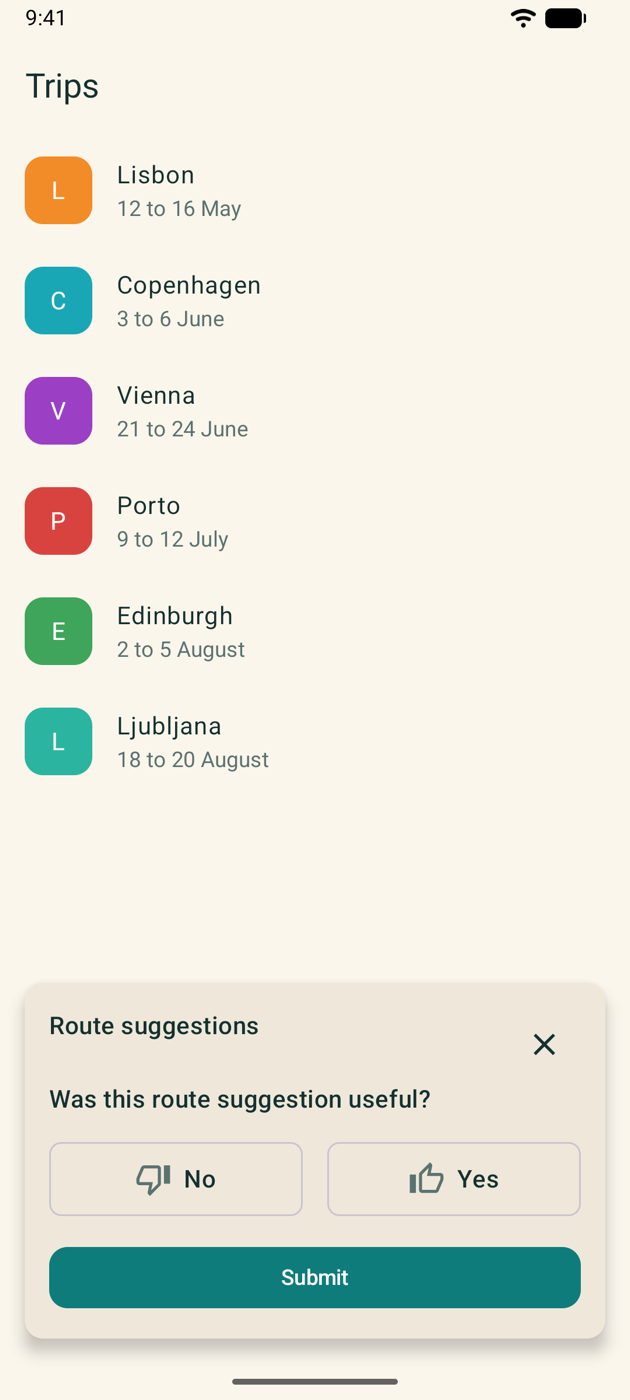
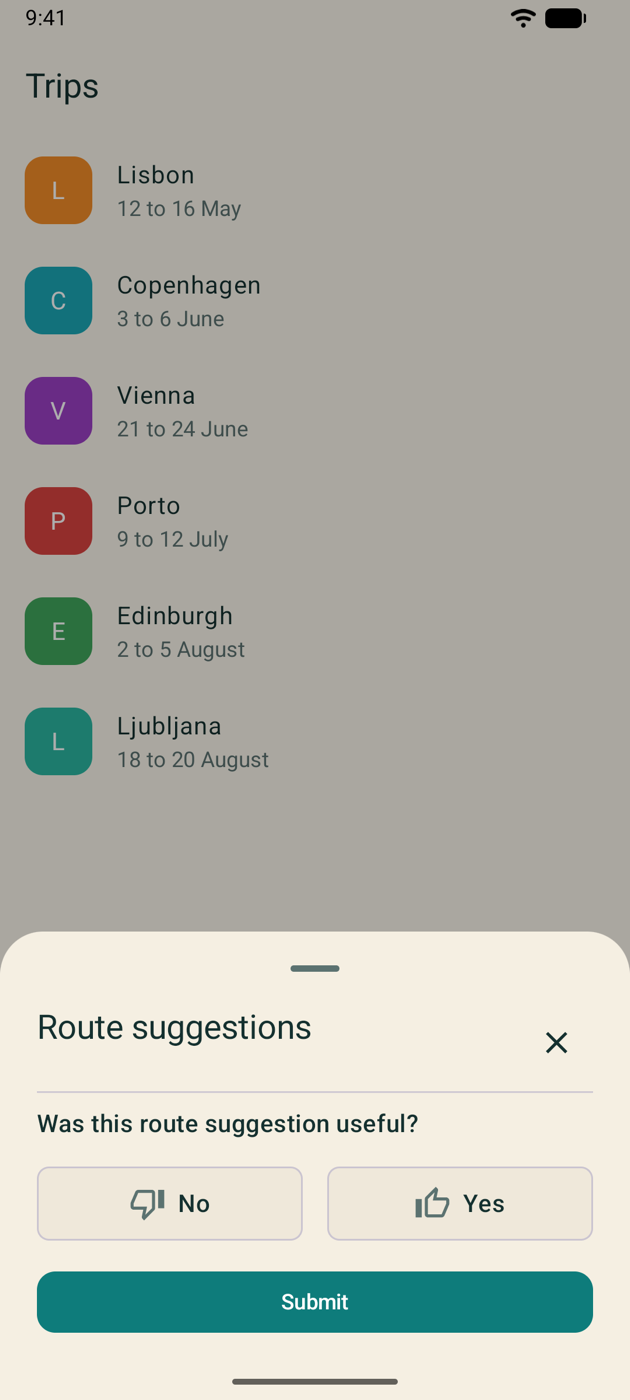
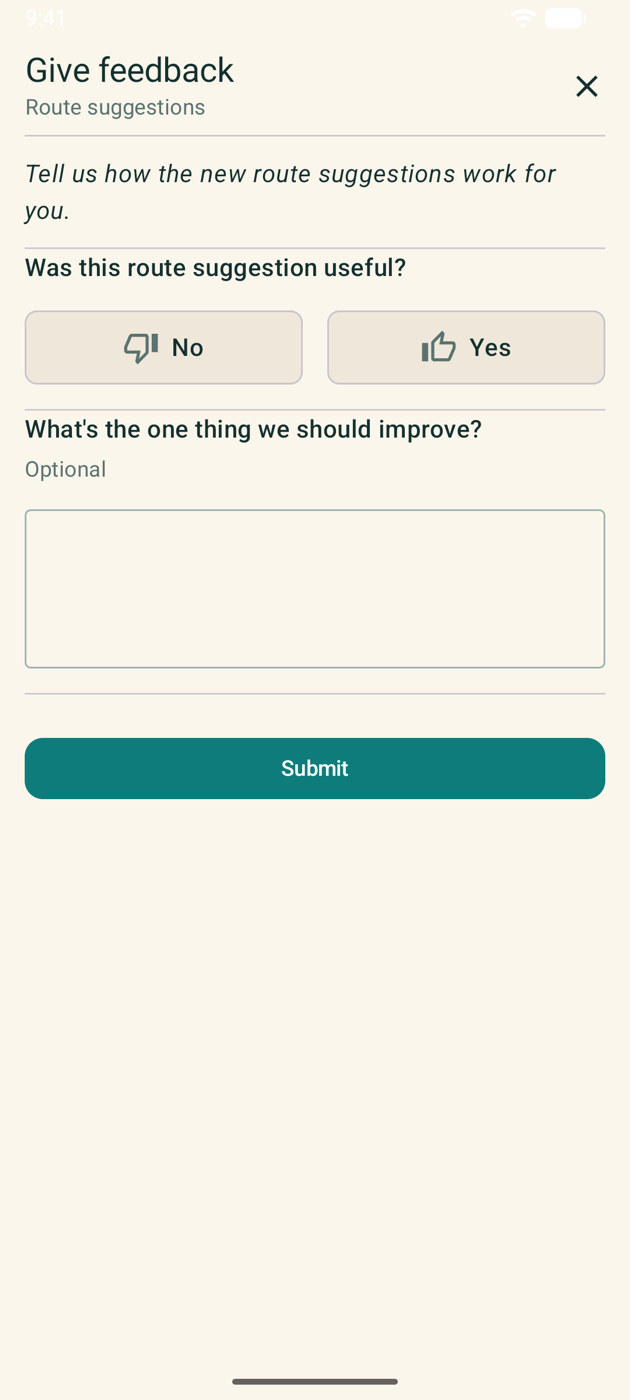
| Thumbs up/down | A quick check right after an action | "Was this route suggestion useful?" |
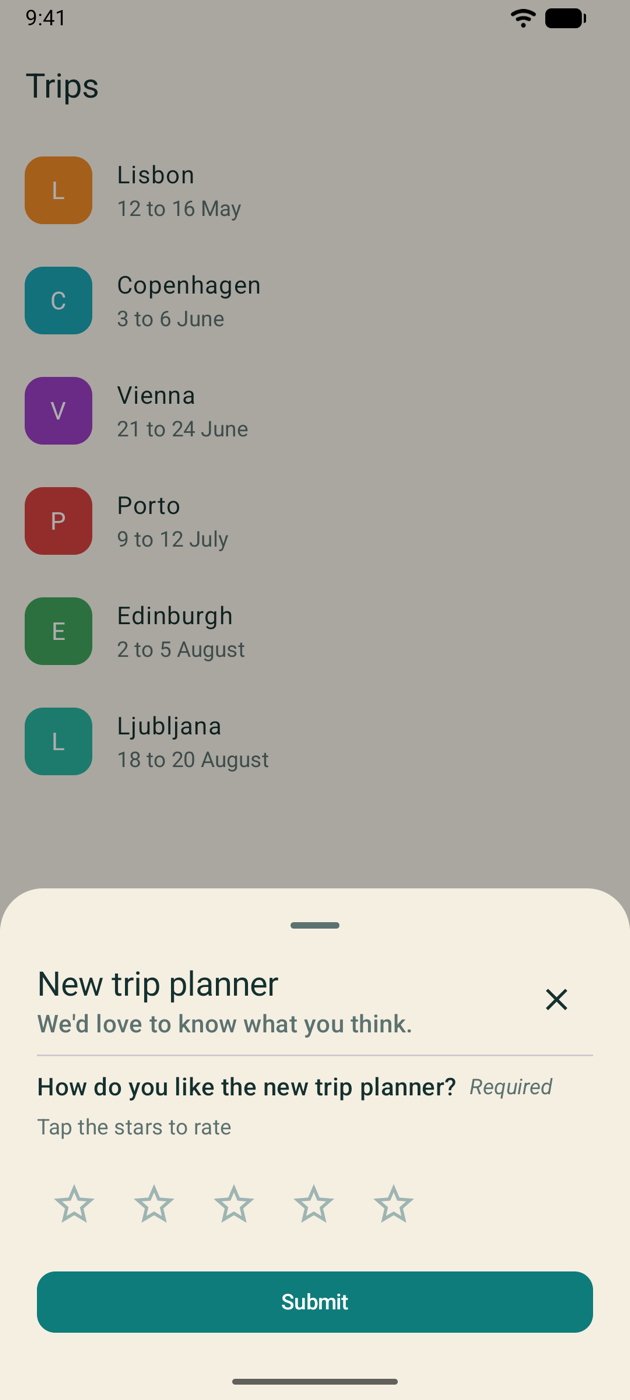
| Star rating | Satisfaction with one specific feature | "How do you like the new trip planner?" |
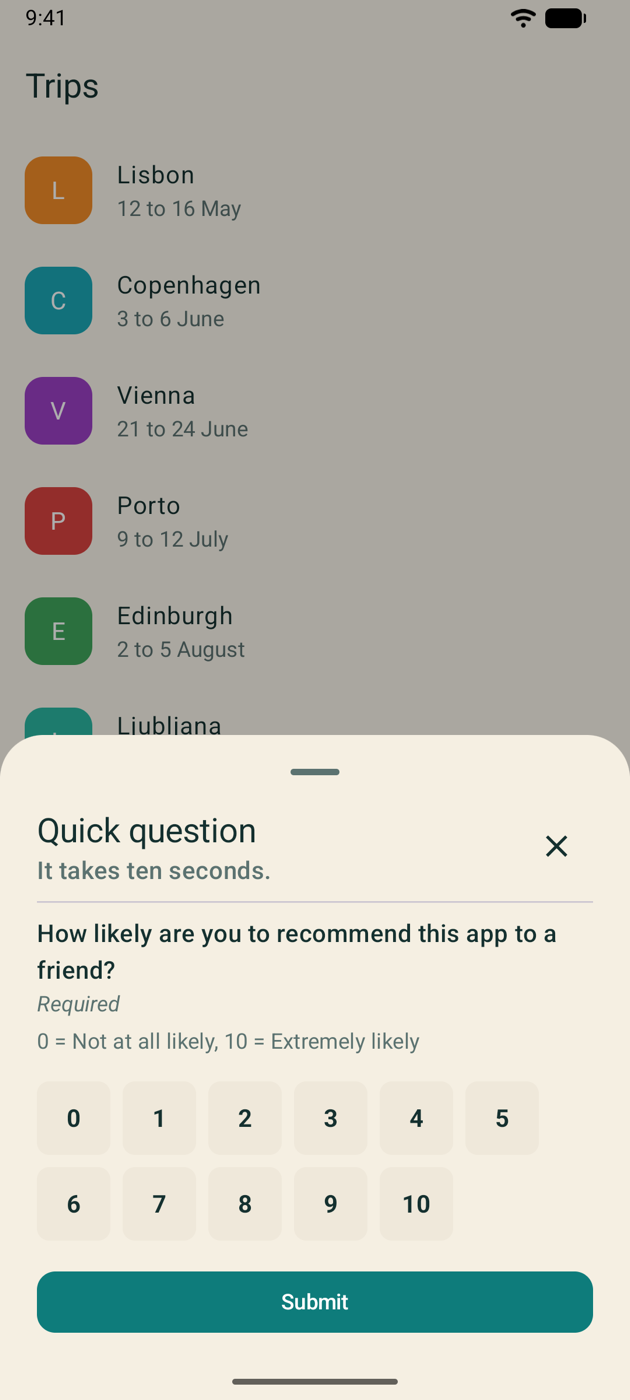
| NPS (0 to 10) | Loyalty over time, after real usage | "How likely are you to recommend this app to a friend?" |
| Multiple choice | Sorting users or picking priorities | "What should we build next?" |
| Free text | The why behind a score | "What's the one thing we should improve?" |
A score tells you that something is off; a free-text follow-up tells you what. Pairing an NPS or star question with one optional text field is often all you need.
Three presentation styles
How a survey appears matters as much as what it asks. You set the style per survey in the dashboard.
| Style | What it does | Use it for |
|---|---|---|
| Banner | A small card at the bottom; the app stays usable | One quick question after an action |
| Sheet | A bottom sheet the user can swipe away | Two or three questions at a natural pause |
| Full screen | Takes over the screen | Longer surveys the user chose to open, like from a "Give feedback" button |
Banners are what iOS calls toasts. The name differs because android.widget.Toast is something else
entirely; the survey format is the same on both platforms.
Three ways to trigger a survey
You decide how much control you want over the timing, and how much over who gets asked.
| Method | You decide when | Dashboard decides who | Good for |
|---|---|---|---|
WhiskrKitSurvey(identifier) | No | Yes | Surveys tied to a screen |
WhiskrKit.checkAndPresent(surveyId) | Yes | Yes | Right after a flow finishes |
WhiskrKit.present(surveyId) | Yes | No | Feedback buttons, push notifications |
The middle option is the one most apps end up using most. The moment is yours, but the targeting and repeat rules still apply:
fun onCheckoutCompleted() {
    WhiskrKit.checkAndPresent(surveyId = "checkout-feedback")
}
For a "Give feedback" button, present(surveyId) shows the survey straight away. It also works
from a push notification handler. If it fires before your UI exists, for example when a notification starts the
app, WhiskrKit holds the request and shows the survey as soon as the host appears.
Matches your Material 3 theme with no setup
A survey that looks like a third-party popup gets dismissed. WhiskrKit reads your MaterialTheme
instead: your colors, your typography, dark mode and dynamic color, without any configuration.
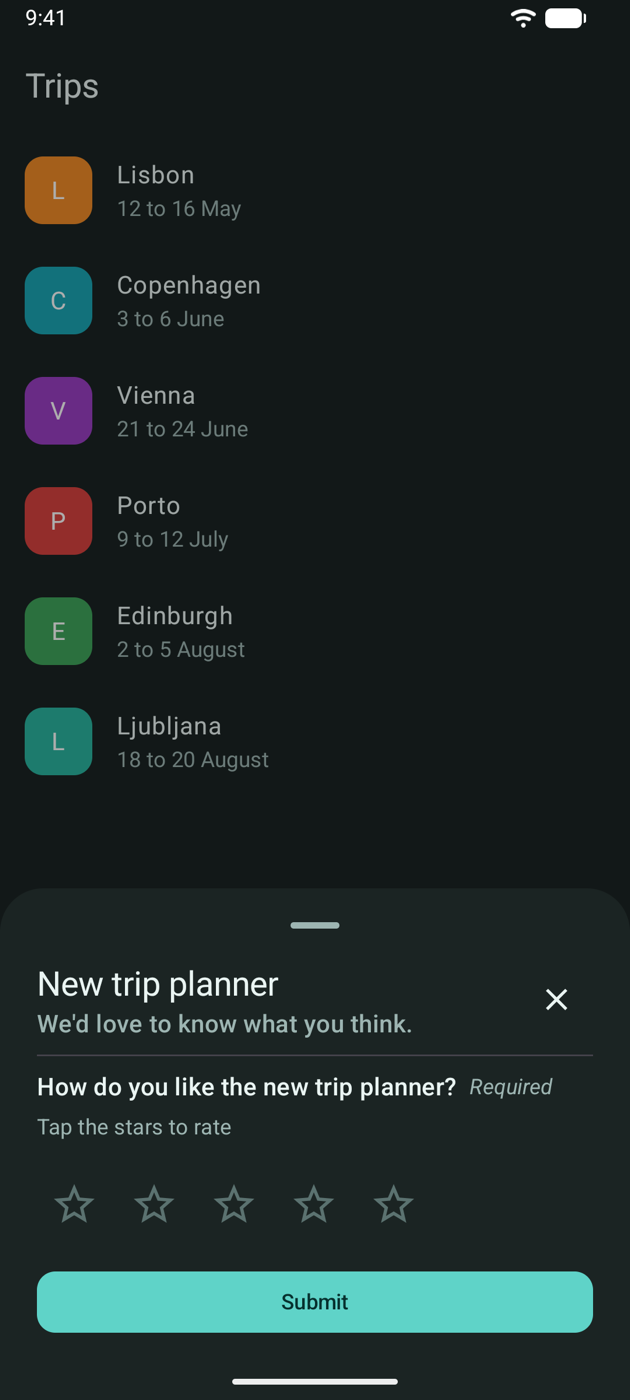
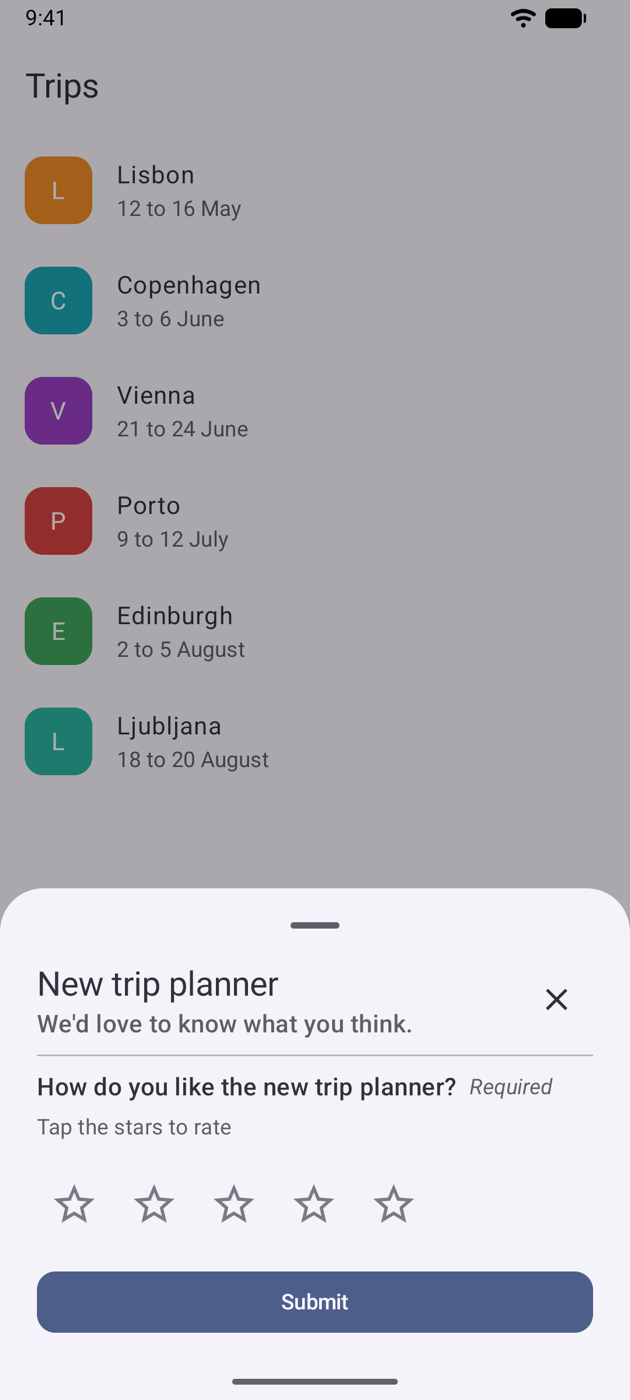
Want more control? Pass a WhiskrKitTheme to the host. Anything you leave unset keeps its Material
default:
WhiskrKitHost(
    theme = WhiskrKitTheme(
        title = WhiskrKitTheme.TextTheme(color = MyBrand.ink),
        button = WhiskrKitTheme.ButtonTheme(
            primary = WhiskrKitTheme.ButtonAppearance.Variant(
                WhiskrKitTheme.ButtonVariant(
                    backgroundColor = MyBrand.accent,
                    textColor = Color.White,
                    cornerRadius = 24.dp,
                ),
            ),
        ),
    ),
) { AppContent() }
For complete control over buttons there is a composable escape hatch:
WhiskrKitTheme.ButtonAppearance.Custom.
Theming is part of the native Android API. The React Native and Flutter wrappers don't expose it.
Offline-safe
Phones lose signal in tunnels, lifts and on trains. When a response can't be sent, WhiskrKit keeps it on the device and retries when the app comes back to the foreground and when connectivity returns. The user never sees an error, and you don't lose the answer.
The SDK adds two normal-level permissions to your manifest: INTERNET and
ACCESS_NETWORK_STATE, the second one to know when to retry.
Survives rotation and process death
Android can rotate your screen or kill your process while a survey is open. WhiskrKit saves the open survey and the answers given so far, and restores them, so a user who rotates the phone or switches apps halfway doesn't have to start again.
Accessible by default
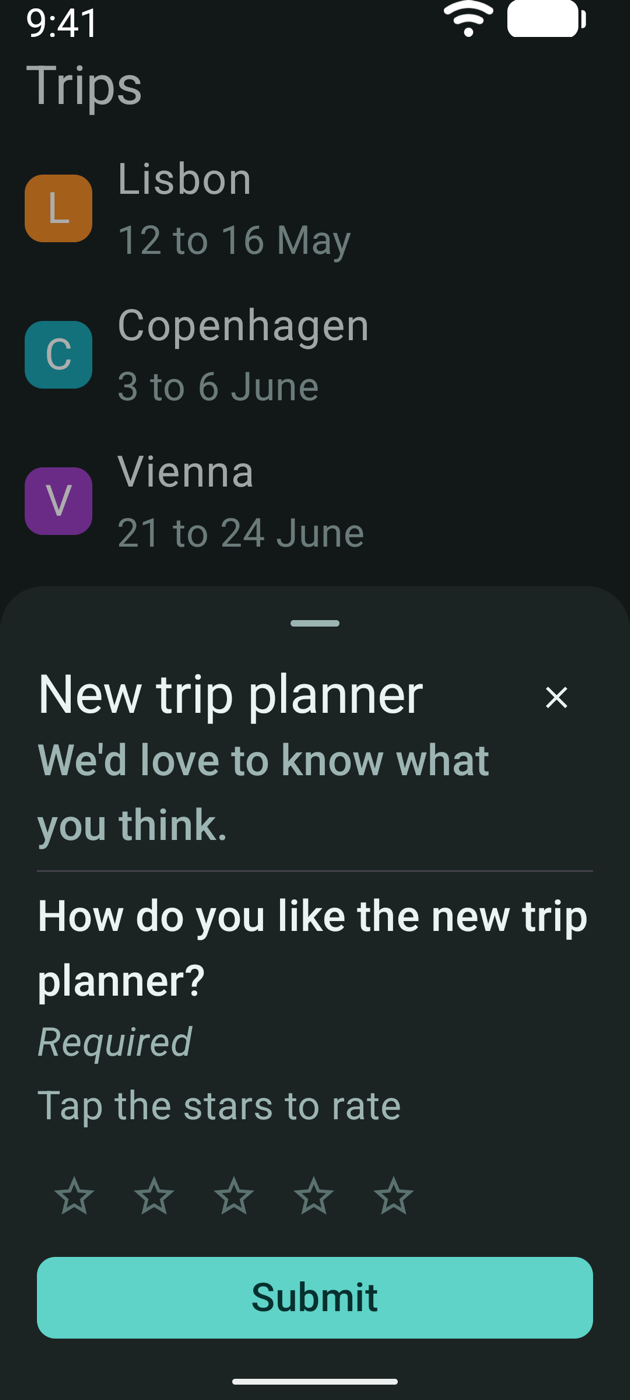
Every component carries native TalkBack semantics, and surveys follow the user's font size and dark mode settings. Give WhiskrKit adaptive colors and fonts through your Material theme, and text scaling just works. The built-in labels, like the buttons to submit or skip, come translated into Dutch, German, French, Spanish, Italian, Portuguese, Japanese, Korean and Simplified Chinese.
How to ask for feedback without annoying your users
Most in-app surveys fail because of timing, not because of the questions. Whatever tool you use, these habits make the difference:
- Don't ask on launch. Someone who just opened your app wants to do something. Wait until they've used it, say a few sessions in, before asking how they like it.
- Never interrupt a task. Ask right after something is done: a booking confirmed, a workout saved, a sheet closed. That's what
checkAndPresentis for. - Ask one question. One question with an optional text field gets far more answers than five questions. Save longer surveys for users who opt in.
- Ask a sample, not everyone. Showing a survey to 10 to 20% of users is usually enough for a clear picture, and leaves the rest alone.
- Don't ask the same person again soon. Set a repeat policy so someone who answered, or dismissed, isn't asked again next week.
- Keep ratings and surveys apart. For Play Store ratings, use Google's own in-app review API. Use surveys to learn what to improve, not to steer happy users to the Play Store. More in Android in-app surveys vs the Play review API.
- Close the loop. When feedback leads to a change, mention it in your release notes. Users who see their answers matter answer again.
WhiskrKit's targeting rules (session counts, time intervals, audience percentage and repeat policy) are built around these habits, so the polite way is also the default.
Try it before you integrate it
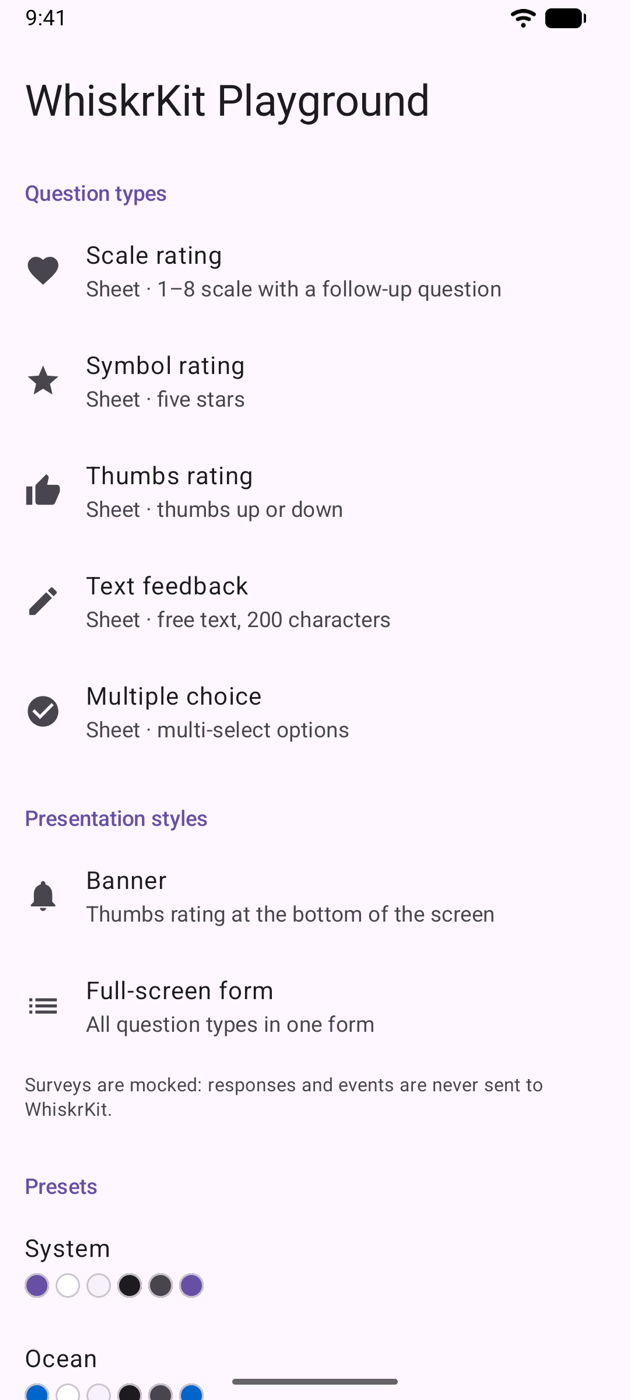
The SDK repository includes the WhiskrKit Playground, a small app in the sample module that runs
without an account, API key or backend. Nothing is sent anywhere. On one screen you can:
- present every question type and presentation style,
- try theme presets or change single colors, in light and dark mode,
- copy the matching
WhiskrKitThemecode into your own app.
Open the project in Android Studio and run the sample configuration.
Your users' answers stay in the EU
WhiskrKit is built and hosted in Europe. Survey responses are stored on servers in the EU, on encrypted storage. A data processing agreement (DPA) is available for every customer, and WhiskrKit never uses responses to train AI models. Read more on the privacy page.
Requirements
- Android 7.0 (API 24) or later
- Jetpack Compose with Material 3
- Gradle, with Maven Central in your repositories
Installation
Add the dependency to your module's build.gradle.kts:
dependencies {
    implementation("eu.whiskrkit:whiskrkit-android:0.2.0")
}
Initialize once in Application.onCreate() with the API key from your dashboard:
class MyApplication : Application() {
    override fun onCreate() {
        super.onCreate()
        WhiskrKit.initialize(context = this, apiKey = "your-api-key")
    }
}
Then add the host once, near the root of your composition, inside your MaterialTheme:
setContent {
    MyAppTheme {
        WhiskrKitHost {
            AppContent()
        }
    }
}
All surveys render at the host, whichever way they are triggered. The SDK is open source under the MIT license.
FAQ
Common questions about the WhiskrKit Android SDK.
Android 7.0 (API 24) and later.
Yes. The Playground app in the sample module uses built-in surveys, so you need no API key and nothing is sent anywhere.
No. Questions, presentation style and targeting live in the dashboard. You only touch code to add a new place where a survey can appear.
Yes. Call WhiskrKit.present(surveyId = ...) when the user taps the notification. If your UI is not composed yet, the request is held and delivered as soon as the host appears.
The response is queued on the device and sent when the app comes to the foreground or connectivity returns.
The open survey and the answers so far are restored.
Nothing visible. With no network, an unknown survey ID or a wrong API key, the survey simply doesn't appear, and your app carries on. Details show up in Logcat under the WhiskrKit tag.
Yes. The iOS SDK talks to the same backend and uses the same survey templates. See the iOS page.
Yes. Both wrappers use this same native SDK on Android, so your surveys stay native Compose. The wrappers don't expose the theming API. See the React Native and Flutter docs.
On servers in the EU, on encrypted storage. See the privacy page.
There's a free plan with 100 responses a month, and paid plans start at €29 a month, excluding VAT. During the beta every account gets the Growth limits for free until 2 April 2027. See pricing.
Hear from your users, inside your app
Add WhiskrKit with one Gradle dependency and your first survey can be live today.